
On a smartphone, the contacts displayed in the address book come from multiple sources: the SIM card, the device’s internal storage, a Google account, iCloud, or another third-party service. The Contacts app combines them without any visual distinction, making it difficult to identify where they’re actually stored. Before switching phones, moving to an eSIM, or resetting a device, pinpointing the location of each contact helps prevent permanent data loss.
Why the Contacts app hides where contacts are actually stored
By default, Contacts apps on both Android and iOS merge all sources into a single list. A displayed name could come from a synced Google account, the phone’s local storage, or the SIM card, with no visible indicator at first glance.
Google’s documentation notes that some contacts saved locally can only be managed on the device itself. They don’t appear in any cloud account and won’t follow you when you switch phones. This distinction has direct consequences: an unsaved local contact disappears if the device is lost or reset.
To find out where your contacts are stored, open the individual contact card and look for the source information, often available via the “Edit” button. On Samsung devices, “USIM” indicates storage on the SIM card, while “Device” or “Phone” indicates internal storage.
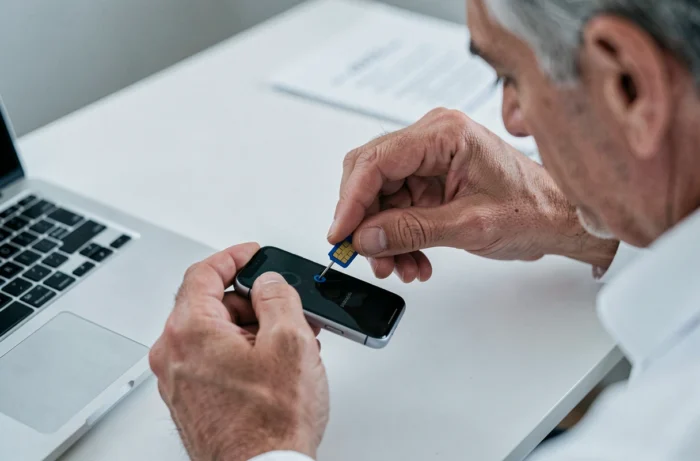
Check where contacts are stored on Android and iPhone
Method for Android (Samsung, Pixel, and other devices)
The Contacts app offers a display filter, usually accessible from the menu in the top-right corner or through the app’s settings. This filter lets you select a single source: SIM, device, or Google account.
- Open the Contacts app, then go to the settings or filtering menu. Select “SIM” as the display source: only contacts stored on the SIM card will appear in the list.
- Repeat the process and select “Device” to display only contacts stored in the phone’s internal memory.
- Select the associated Google account to view contacts synced with the cloud. These can be retrieved from any device connected to the same account.
When you open an individual contact and tap “Edit,” the storage source appears below the contact’s name. Checking contacts individually is the most reliable method when a global filter isn’t available on certain manufacturers’ Android interfaces.
Special case: iOS
On iPhone, Apple doesn’t allow contacts to be stored directly on the SIM card. Contacts are stored in an iCloud account, another configured email account (Gmail, Outlook), or the device’s local memory. You can import contacts from a SIM card to an iPhone (via Settings > Contacts > Import SIM Contacts), but storing contacts on a SIM card isn’t offered as a save option.
This restriction makes it easier to identify where contacts are stored on an iPhone: if a contact exists, it’s either in iCloud, in a third-party account, or stored locally. The Contacts app settings let you check which account is set as the default for new contacts.
Cloud sync and local backup: two different processes
A common misconception is that backing up a phone automatically protects its contacts. A full device backup (via Google One or iCloud) may include local contacts, but this depends on the settings chosen by the user.
Syncing and backing up don’t serve the same purpose. Syncing keeps an active, up-to-date copy on a remote server: every local change is reflected in the cloud, and vice versa. A backup, on the other hand, creates a snapshot that isn’t necessarily updated in real time.
A contact saved on the SIM card is covered by neither process. It isn’t synced with a cloud account or included in the operating system’s automatic backups. If the phone is lost, only the physical SIM card retains that contact, subject to the limitations of this storage medium.
Practical limitations of SIM card storage
A SIM card is a highly limited storage medium. It generally supports one name and one phone number per contact. Additional information (email address, photo, mailing address) isn’t supported by the SIM format.
The move to eSIMs, which are built directly into the phone’s processor, further reduces the usefulness of this storage option. On a device with an eSIM and no physical SIM slot, storing contacts on a SIM card is no longer an option. Contacts are then transferred exclusively between internal storage and cloud accounts.
For users who still have a physical SIM, transferring SIM contacts to a Google or iCloud account is the best way to protect them. Once transferred, contacts benefit from automatic syncing and can be accessed from any device connected to the same account.
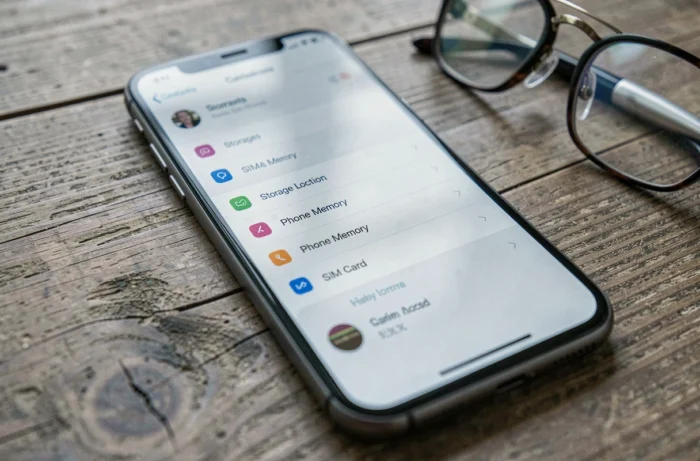
Android contacts: find and fix duplicates caused by multiple sources
Combining multiple sources often creates duplicates. The same contact may exist on the SIM card, in the phone’s memory, and in a Google account, resulting in two or three separate entries in the address book.
Google’s Contacts app includes a duplicate-merging feature, accessible from the “Suggestions” or “Merge & fix” menu. It identifies entries that share the same number or name and offers to combine them into a single entry linked to the source selected by the user.
Before merging, make sure the destination account is synced to avoid losing information. If contact syncing isn’t enabled for the Google account in the phone’s settings, the merged entries will be linked to an unprotected local storage space.
It takes just a few minutes to check where all your contacts are stored. Filtering by source, checking individual contact cards, and then consolidating everything into a synced account is the most reliable way to avoid losing anything when switching devices or carriers.